Player Guide
Everything you need during your tournament — right on your phone.
GG Arena tells you when your match starts, who you’re playing, your table number and what happens next. You can update your score and submit your result directly from your phone.
Get ready
Get ready in 3 simple steps
A little setup before the tournament means everything just works on the day.
1
Create your GG Arena account
Create your account once and use the same account whenever you play in tournaments that use GG Arena. Create an account →
2
Follow your club
Find your backgammon club in GG Arena and follow it. This makes it easy to find your club’s tournaments and stay connected. Find your club →
3
Allow notifications
Enable notifications so GG Arena can tell you the moment your match is ready — you won’t have to keep checking the bracket.
Your control center
Your tournament in one place
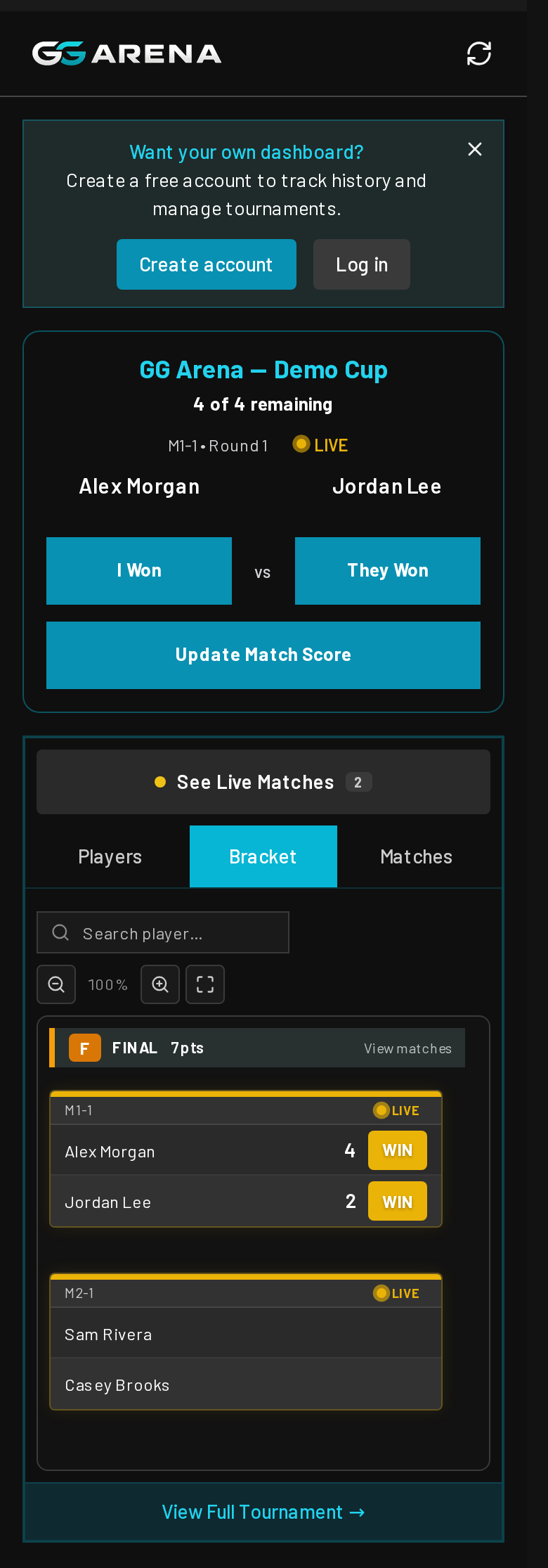
Once the tournament starts, your Player Dashboard becomes your control center.
1
Your Current Match
See your opponent, match length, table number and current score.
2
Your Next Match
When available, GG Arena shows who you may be playing next.
3
Your Tournament
See your status and previous matches without searching the full bracket.
4
Your Result
When the match is finished, submit the result directly from your phone.
While you play
Find your match, and keep the score live
Update the score at natural breaks so friends, family and spectators can follow along — and when you finish, submit the result yourself.
1
Find your table
When your match is called, open your Player Dashboard to see your opponent, match length and table number.
2
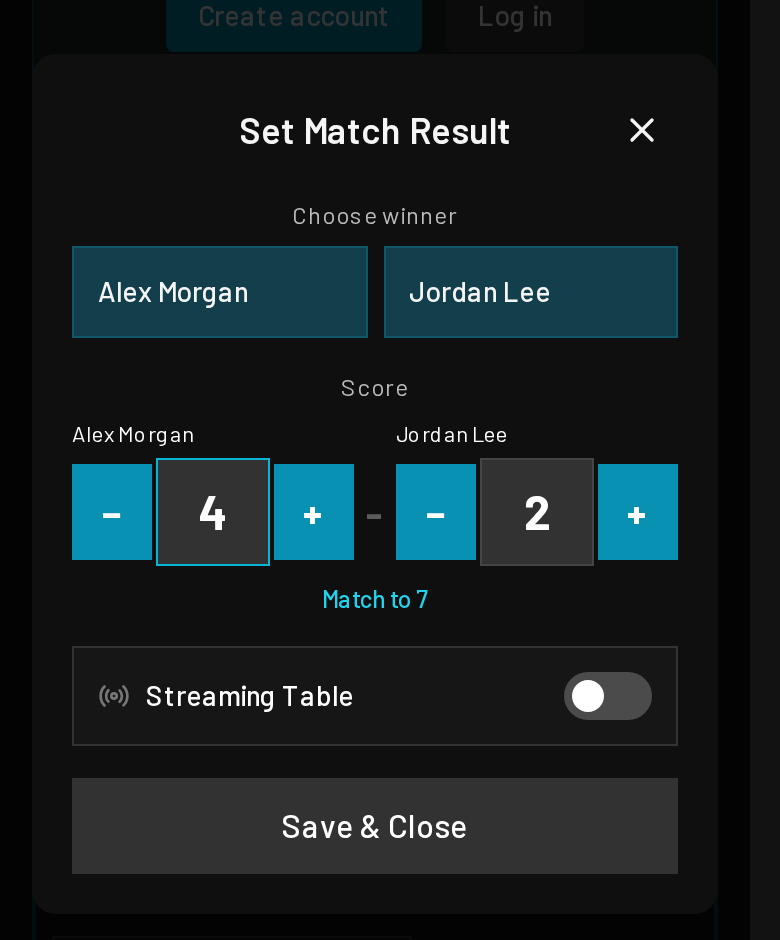
Update the score as you go
Between games or during a natural break, tap Update Score — e.g. 3–2, then 5–3, then 8–6. It never has to interrupt your match.
3
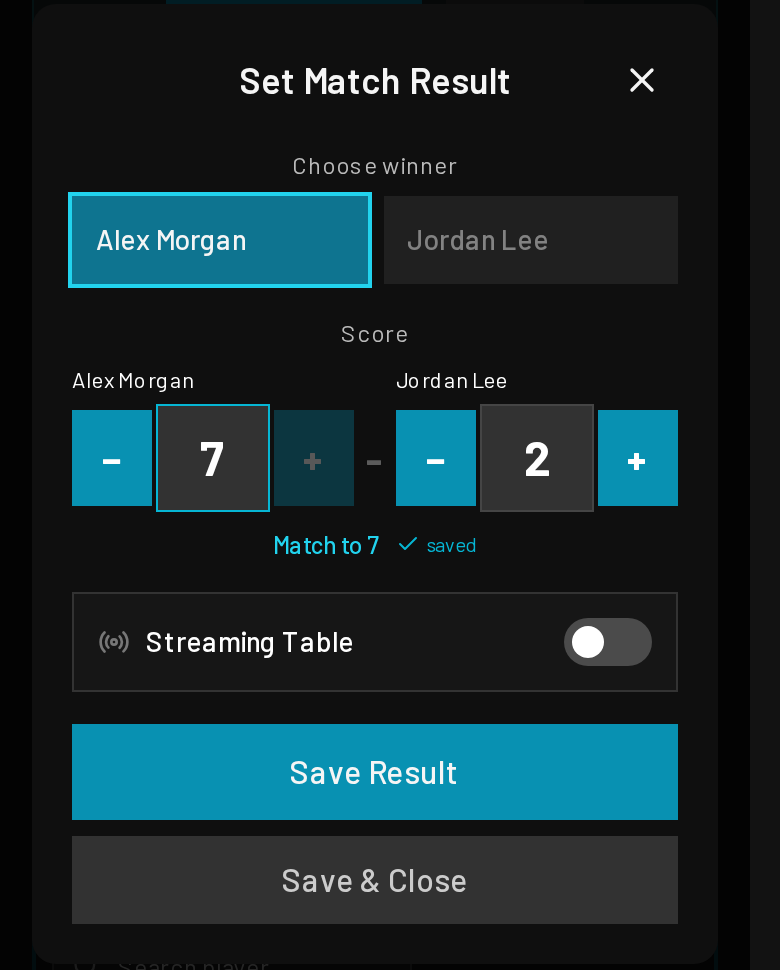
Submit your result
When the match is finished you don’t need to find the Tournament Director. Submit from your dashboard, confirm, and GG Arena updates the tournament and prepares the next matches.
Updating the score
Submitting the result
Stay in the loop
Notifications & following
Let GG Arena tell you when something matters — and follow the tournaments and players you care about.
Your match is ready
You’re playing John Smith at Table 14.
1
Match notifications
Enable notifications and GG Arena tells you the moment your match is called — no need to keep refreshing the bracket.
2
Follow a tournament
You don’t have to be playing. Follow a tournament to track live matches, scores, results and bracket progress. Browse tournaments →
3
Follow a player
Friends or family competing? Follow a player and GG Arena keeps you updated as they progress through the tournament.
4
Watch from anywhere
Everything updates live, so spectators at home see the same picture as the room.
One tap away
Use GG Arena like an app
No app store needed. GG Arena runs in your browser — add it to your Home Screen to open it in one tap.
iPhone / iPad
- 1. Open GG Arena in Safari.
- 2. Press the Share button.
- 3. Choose Add to Home Screen.
- 4. Press Add.
Android
- 1. Open GG Arena in your browser.
- 2. Open the browser menu.
- 3. Choose Add to Home screen or Install app.
- 4. Confirm.
On tournament day
Before
Log in, enable notifications and open your Player Dashboard.
Called
You get a notification — open your dashboard for opponent, table and length.
During
Update the score occasionally so spectators can follow along.
Finished
Submit your result. GG Arena tells you what happens next.
Something not working?
Troubleshooting
I can’t find my tournament
Make sure you are logged into the same GG Arena account connected to your player profile.
I didn’t receive a notification
Check that notifications are enabled for GG Arena on your phone, and that you’ve allowed them in your browser.
I entered the wrong score
Contact your Tournament Director — they can correct it. If you need more help, use Contact & Feedback below.
I can’t find my Player Dashboard
It opens automatically when you log in during a tournament you’re registered for.
Do I need to install an app?
No. GG Arena works directly in your browser. You can also add it to your Home Screen for easier access.
Still need a hand?
Ask a question, report a problem or send an idea — it comes straight to me.
Contact & Feedback